
LITA 2008: What is “Social Cataloging” and Why Should You Care?

“Having games in the library strikes me as being like having bocce in the frat house.”

Speaker: Tim Spalding, Founder of LibraryThing

“I have no practical advice for you, but I have inspiration and screen shots.” Such as, images from Dr. Horrible’s Sing-Along Blog and book pile photo submissions.

Social cataloging does not need to be defined. LibraryThing is a good example of social cataloging, but it’s not the only resource out there like that. (LibraryThing is now larger than the Library of Congress.) Good Reads focuses more on the social aspects, and Shelfari is being revived by Amazon. There are other sites like CiteULike and Last.fm that do social cataloging of things other than books.

Social cataloging explores the socialization. LibraryThing embraces the social and the digital because there is no physical aspect (except for what you have in your own collection).

Social cataloging ladder:

  • personal cataloging – your stuff
  • exhibitionism, voyeurism – about you and your stuff
  • self expression – book pile photos, reviews
  • implicit social cataloging – tag clouds on books that incorporate data from all owners, recommendations, connect with other owners of more obscure books
  • social networking – “friends” lists, users who share your books, groups
  • sharing – book covers of different editions, author photos
  • explicit social cataloging – work-level records (any title you would agree on at a cocktail party) for both books and authors, series data
  • collaborative cataloging – building the catalogs of famous dead people, developing an open-source alternative to Dewey

Regarding why Spalding felt it necessary to pull data from libraries and not just Amazon, he says, “Once you are over the age of 30 and you are not a Philistine, you have books that Amazon is not currently selling.”

Interesting factoid about how things are tagged on LibraryThing: LGBT and GLBT tags have two completely different lists of books.

Traditional cataloging is based on the physical form of cataloging with cards. It was too difficult to change subjects or to add weight to particular subjects because you couldn’t do that with physical cards. We need to get away from this now that we have all the flexibility of digital cataloging. Digital cataloging is social cataloging.

LibraryThing users are doing about 1,000 work combinations per day! Voluntarily! Experts on book topics are the ones pulling the data together, not experts on cataloging.

LibraryThing members figured out what books are on Dr. Horrible’s shelf based on a fuzzy still from the video. And then the guy who lives in the apartment where it was filmed corrected the editions listed.

There are many non-librarians who are passionate about books and classification. People care about libraries and library data.

On the other hand, we suck. Our catalogs are fundamentally not open to the web because our pages are often session-specific and not friendly to index spiders. Worldcat.org is getting fewer visitors, whereas Dogster.com is getting more.

Library 2.0 is in danger. Libraries are concentrating on what they can do, not what they can do best. We don’t need to have blogs or pages on Facebook. “Having games in the library strikes me as being like having bocce in the frat house.”

Do not pay anyone for Library 2.0 stuff. Do it yourself. OCLC is not yourself.

Or, pay Spalding for his 2.0 enhancements (LibraryThing for Libraries).

Social cataloging is about the catalog, about what you can do right now, about passion, and about giving (not taking).

thing 19: best of web 2.0

This assignment asks us to look at the Web 2.0 Awards and pick a site/tool to play with. I looked at both this year’s and last year’s lists and couldn’t find anything that interested me that I hadn’t already tried or am using on a regular basis. I guess that’s one of the benefits (hazards?) of having a lot of twopointopian friends — I may not be on the bleeding edge of shiny new technology, but I can at least see the contrails.

thing 18: web applications

It has been a while since I seriously looked at Zoho Writer, preferring Google Docs mainly for the convenience (I always have Gmail open in a tab, so it’s easy to one-click open Google Docs from there). Zoho Writer seems to have more editing and layout tools, or at least, displays them more like MS Word.

I have been dabbling with web applications like document editors and spreadsheet creators mostly because I don’t like the ones that I purchased with my iMac. I probably would like the Mac versions more if I were more familiar with their quirks, but I’m so used to Microsoft Office products that remembering what I can and can’t do in the Mac environment is too frustrating. While Google Docs isn’t quite the same as Microsoft Office, it’s more-so than iWork ’08.

Playing with Zoho Writer, however, reminded me that I need to work around my Google bias. Particularly since the Zoho products seem to have the productivity functions that make my life easier.

thing 17: UR wikis

At my library, we have a couple of wikis set up. One is basically a transfer of our main service desk manual from paper to online, and the other is Boatipedia, our FAQ. I agree with Carol in that the format works well for our manual, and I also agree with her that I’m not entirely sold on the idea of a FAQ in wiki format, unless the intent is more for the ease of allowing many authorized users to edit it. As Carol puts it, “we really don’t want anyone to be able to go in and change content — do we?”

As for other uses for an internal wiki… I could see myself using a wiki to organize information about our electronic resources, licenses, and contacts. Being able to search across pages to find information and the ability to have input from each of the individuals involved in the process would both be pluses for the format over more traditional paper files and email archives. However, we have paid for a tool specifically designed to do that, which also interfaces with the public side of linking users to the resources, so it wouldn’t make sense to use a wiki instead of or in addition to that tool.

thing 14: Technorati

The first thing I got out of this assignment was the final push I needed to subscribe to Lifehacker, rather than continue to rely on the biblioblogosphere to filter out the “important” stuff from it. The next step, of course, will be reading it frequently enough to keep from getting overwhelmed and behind. Unfortunately, I’m already 14 entries behind on Zen Habits, so overwhelmed and behind is a distinct possibility.

I haven’t really found much use for Technorati. It’s handy to have for doing ego searches (i.e. who’s linking to me), but beyond that, I have so many sources of information that this is one more that I don’t need. However, if you’re looking for what’s hot or interesting in blogs, it’s a good place to start.

thing 13: del.icio.us

When social bookmarking sites came on the scene, I was very resistant to using them. I had an organized system of bookmarking sites I visited regularly or sites that I needed to reference occasionally, and the del.icio.us format for displaying bookmarked URLs seemed cluttered and unorganized to me.

Fast-forward about five years, and we are now in a world where tagging and folksonomy are no longer scary new concepts (well, to those of us who have been reading, writing, and talking about them in the mean time). Tagging is now almost a requirement for a Web 2.0 service, and I use it frequently to keep track of things I want to go back to later, or to categorize what I am looking at.

About a year ago, I started using the del.icio.us extension for Firefox. At first, it was just a long list of the tags I used and had to be manually updated. Now it’s fully integrated with automatic syncing and the very useful search box (from the sidebar). It has nearly replaced the bookmark tool native to Firefox as my primary source of collected URLs that I find important to me. The best part is that I can access my bookmarks no matter which computer I am using, and this has come in handy on many occasions.

As I noted, I still use the bookmarking options within Firefox and do not send these things to my del.icio.us bookmarks, either. Mainly these are the sites I visit frequently, and I have them in my Bookmarks Toolbar folder so they’re just one click away. I have another folder of links to the tools that we use for on-call reference (Meebo, Ref Desk webmail, and LibStats), and I can tell Firefox to open all of the bookmarks in that folder with one click when my on-call shift begins.

One thing I’ve started doing with del.icio.us is creating sets of links that I can share with other people. I was inspired by a Computers in Libraries presentation on using del.icio.us for creating on-the-fly lists of resources for individuals and classes. If you’re interested, you can check out the list of podcasts I’m currently subscribed to.

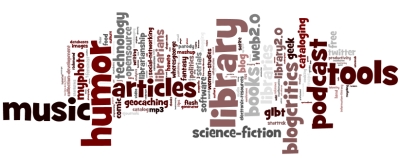
Since I haven’t jumped on the Wordle bandwagon yet, and since it was a bonus activity for this thing, here’s the Wordle cloud for my del.ico.us tags:

wordle cloud of my del.icio.us tags

thing 10: image generators

For this assignment, we are asked to look at several different online image generators/editors. The first is fd’s Flickr Toys, which I have played with in the past. However, I am surprised to see how many nifty tools they have now — far more than the memes that have invaded my online social network. I will probably find use for CD Cover, Motivator, and Lolcat Generator. (If you’re a new WordPress user and you want a spiffier header than the default, check out the Blog Header tool.)

Dumpr seems to be similar to fd’s Flickr Toys, except that a handful of the more interesting tools require a pro membership to use, which does not impress me. If I’m going to pay for something like that, I might as well learn how to do it myself in Photoshop or GIMP.

BE NOT AFRAID - CEILING CAT SENT ME

thing 9: finding RSS feeds

Part of why I have so many RSS feeds in my reader (234 at the moment — picked up three more this week) is because it is so easy to subscribe to things I run across in my day-to-day online activity. I’m currently using the Better GReader plugin for Firefox, which compiles some of the best Greasemonkey scripts for Google Reader. One thing I really like about it is the “Auto Add to Reader (Bypass iGoogle Choice)” feature, which saves me a few clicks.

This particular assignment asks us to make use of directories like Technorati and Feedster to locate feeds we want to subscribe to. I’m going to not do that, since I already have more to read than I have time to read. In any case, those tools have not been particularly useful to me in the past. I tend to find new feeds through links from the ones I’m currently reading.

thing 8: RSS

The first part of the assignment is to set up a feed reader. I’ve used a variety of feed readers, from desktop readers to online readers, and by far I prefer the online readers. The mobility alone makes them a winner, since I read feeds using several different computers. Here’s my current OPML file, which has been slightly edited and reorganized for public consumption (i.e. you don’t need to know about my ego feeds).

Over the years, have had to cull my feeds periodically. There are several news sites or blogs that I would love to be able to keep up with, but I don’t have the time to process the volume of content they generate on a daily basis. Currently, I have about 231 subscriptions, several of which are for dead feeds that I haven’t cleaned out yet.

I am perpetually behind on reading all of my subscriptions. There are a few that I hit regularly, but the rest are saved for times when I need to take my mind off of whatever problem I am working on at the moment. With this many feeds, RSS is a time shifting or bookmarking tool, and I’m okay with that. Twitter has become my source for the latest OMG news.

thing 7: technology

I first thought I might write about my new iMac and falling in love with the OS, but instead I’m going to write a bit about a new mashup tool that a colleague introduced me to today. It’s called Widgenie, and it takes Excel or CSV files and makes nifty graphs and charts out of the data.

I’ve done this several times using Excel, and often I find that there are too many things to tweak to do just a quick and dirty graph or chart for a meeting/presentation. With Widgenie, I found the opposite to be true. Cell formats are limited to text, number, and date/time, and for the life of me, I could not get it to show data for resources over a period of time (i.e. one year of use stats for a collection of databases).

That being said, the tool is in Beta, so it’s possible that greater functionality will come. For now, though, it’s probably useful for only simple graphs and charts, such as this: